
The detail page
Read a subscription’s spending, duration and charge history, and understand how its detail-page figures are calculated.
Click a subscription anywhere to open its detail page.
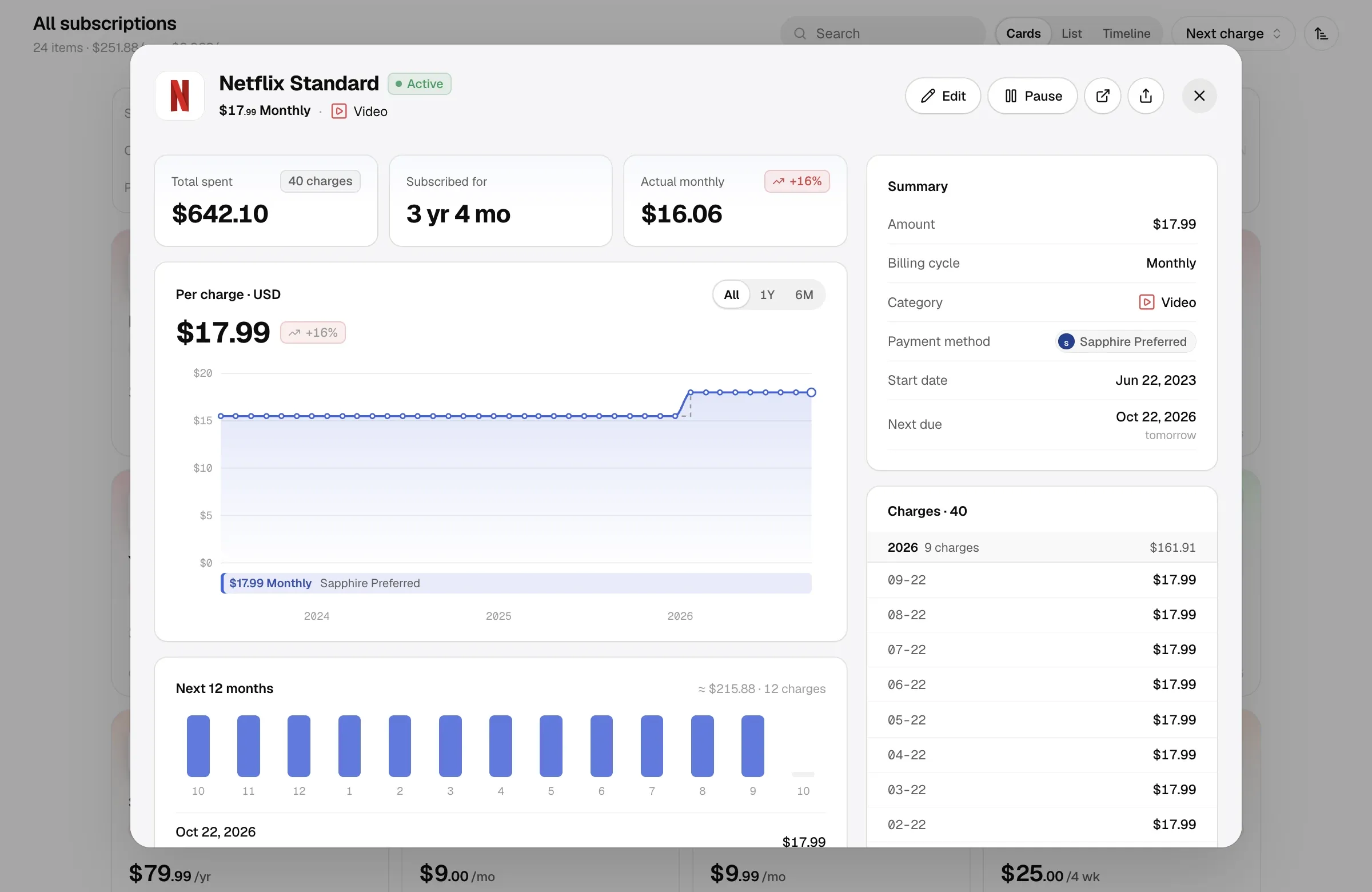
Actions
Section titled “Actions”- Edit: open the editor.
- Pause / Resume: see Pause. Not shown for lifetime purchases or ended subscriptions.
- Manage: open the Manage page from the editor (where the family group and billing live).
- Website: open the subscription’s website.
- Share: make a share image of this subscription. See Share images.
The three figures
Section titled “The three figures”| Figure | How it’s calculated |
|---|---|
| Total spent | All past charges, each converted to the base currency at that day’s rate; charges with a Charged to card amount use that. Refunds are negative, failed charges count as 0. The number of charges is shown alongside. If you host a shared plan, this is the full amount you paid out; members’ contributions are on the shared plan page. |
| Subscribed for / Owned for | Time actually subscribed: each phase from its start to today (or its end), minus lapses, without double-counting overlapping phases. If there were lapses, it says how many. |
| Actual monthly | Total spent ÷ max(1, days subscribed ÷ 30.44). With fewer than 30 days or fewer than two regular charges this isn’t meaningful, so Expected monthly is shown instead, based on the current phase’s list price. Lifetime purchases show Per month owned: total ÷ months owned, with a minimum divisor of one month. |
Per-charge trend
Section titled “Per-charge trend”The line chart plots each regular charge converted to the base currency (refunds, adjustments and failed charges are left out). The dashed line is List price at first rate: the list price converted at the exchange rate of the phase’s first charge. The gap between the two lines is what exchange rates did; steps in the dashed line are price changes.
- Switch to Original to see amounts and list price in the subscription’s currency.
- Ranges: All, 1Y, 6M.
- With fewer than two charges there’s no trend to draw.
For subscriptions with several phases, bars under the chart show each phase, with overlapping phases on separate lanes.
Summary
Section titled “Summary”Amount, billing cycle, category, payment method, start date and next due; where relevant also service end, ended on, trial end and region.
- Intro offer: intro price, offer end and the price after.
- Shared plan: for a plan you host, “Shared · I host (taken/seats)”, each member’s paid-through date or amount due, your share, and how many seats are free; for a plan you joined, who you pay. Open plan goes to the shared plan.
- Upcoming change: for a planned or upcoming phase, “Planned change · not confirmed”, “Starting soon” or “Upcoming change”, with the effective date. Planned changes can be confirmed or dropped right here.
- Also running: after a region switch, while the old plan is still running, the previous plan and when it runs until.
Charges
Section titled “Charges”Every charge, grouped by year, with refunds, adjustments and failures marked. Use Add for a refund, adjustment, failed charge or card amount; click a charge to edit or delete it. Rules are in Charges.
Edit a charge
Section titled “Edit a charge”- Click a charge in the list, or click Add.
- Choose the date and type, and check the amount. With overlapping phases, choose Belongs to.
- If you need the actual settlement amount, complete Charged to card (optional) and save.
History
Section titled “History”The subscription’s events in order: subscribed, plan switched, price change, back to regular price, paused, lapsed, sharing started, ended or ends, next charge — plus the number of phases and lapses. See Price history and phases.
Next 12 months
Section titled “Next 12 months”Every projected charge over the next 12 months, with the total and count. Future charges use today’s exchange rates.