
Built-in assistant
Paste text or screenshots into the built-in assistant to query your ledger or prepare changes for your confirmation.
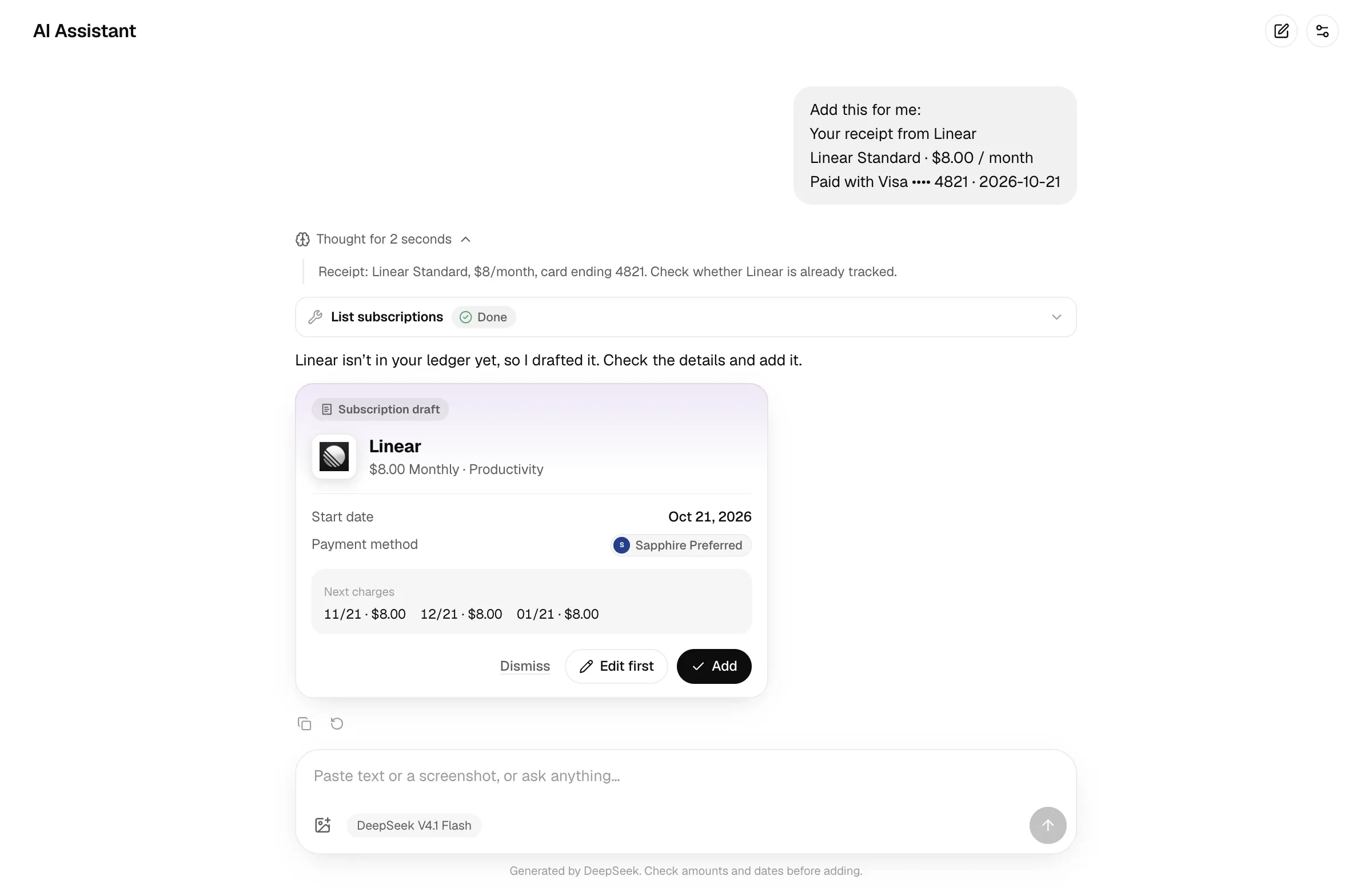
Assistant in the sidebar is a built-in AI assistant. Give it an App Store receipt, a payment text message, a screenshot of a subscription page or any text, and it turns it into subscription drafts that are only saved once you confirm. You can also simply ask “Which subscriptions are still due this month, and how much in total?”
The assistant uses your own DeepSeek API key, billed to your DeepSeek account at DeepSeek’s prices. On the Assistant page, click AI settings:
| Setting | Details |
|---|---|
| API key | Stored only on your server — never sent to the browser or included in backups. Once saved only the last four characters are shown; leave it empty to keep it unchanged. Remove key deletes it. |
| Base URL | https://api.deepseek.com by default. Change it only for a proxy or an OpenAI Chat Completions–compatible service; a trailing /v1 or /chat/completions is stripped automatically. |
| Model | deepseek-flash (V4.1 Flash) by default, which can read images. |
| Thinking | Off (fastest, fine for simple receipts), Light (recommended, the default) or Deep (steadier on complex bills, slower). |
Test connection lists the models available to the key.
- Open Assistant → AI settings and enter your API key.
- Check the Base URL and model, use Test connection, then save.
- Send text or a screenshot in the chat. Review each draft before clicking Add or Confirm.
Using it
Section titled “Using it”Paste text into the input, or add or paste images (up to 8 per message). Enter sends, Shift Enter adds a new line.
The assistant tries to:
- reads amounts in the currency of the store or receipt (Turkish App Store means TRY and region TR), and picks up the cycle, start date, trials and intro offers;
- includes the plan or tier in the name, like “iCloud+ 200GB” or “Spotify Premium Family”;
- picks the closest category from your list and matches the payment method to the card or store account mentioned;
- fills in the icon and website from the App Store (the card says so when it does);
- checks your existing subscriptions first, and proposes a price change, a charge or an update instead of a duplicate.
If details are missing, it may ask a follow-up or use defaults flagged on the draft. Review the result before confirming.
Drafts and confirming
Section titled “Drafts and confirming”Every change is a draft. Each write shows up as a card with the fields to be saved and the next few charges:
- Add / Confirm: save it to the ledger;
- Edit first: open the draft in the editor and save from there;
- Dismiss: don’t save it.
Drafts in one question build on each other. For example, “add this subscription, make it a shared plan, add three members and record what they’ve already paid” produces all four kinds of cards in one go, and the later cards already see the new subscription from the first. With several cards pending, Confirm all saves them in order.
Required fields it couldn’t read are filled with defaults, and the card says which ones to check. Always check amounts and dates before adding.
What the assistant can do
Section titled “What the assistant can do”All read tools are available (the same as the read tools in the MCP tool reference). These write tools are available, as drafts only:
create_subscription, update_subscription, delete_subscription, change_price, change_plan, set_status, record_payment, set_share, save_share_member, remove_share_member, record_receivable.
Deleting charges and changing payment method balances are outside the built-in assistant’s write tools. Use the app or a read-write MCP client for those operations.
Each question allows up to 8 rounds with the model (each round can call several tools).
Chat history
Section titled “Chat history”Chats are stored on the server, so every device sees the same history. New chat just starts a new conversation without deleting old ones. To delete everything, click Clear all chats in AI settings; this removes chats on the server and on this device, and can’t be undone.
Chats aren’t included in full backups.
Privacy
Section titled “Privacy”When the assistant reads something, the text and images you send are forwarded through your server to DeepSeek (or the Base URL you set). What the assistant sees of your ledger is whatever its tools return: subscriptions, payment methods, shared plan members and so on.
The AI access (MCP) switch in Settings only controls whether external AI assistants can reach /mcp; it doesn’t affect the built-in assistant.