
Subscriptions and billing cycles
Before adding a subscription, learn how billing fields, trials, offers, free time and cancellation affect charges.
Press N or click New in the sidebar to open the editor. You can paste an App Store link straight into the name field; typing a popular service fills in its logo, category and website from the built-in catalog. Or click Fill in with AI and paste a receipt, screenshot or any text for the built-in assistant to sort out.
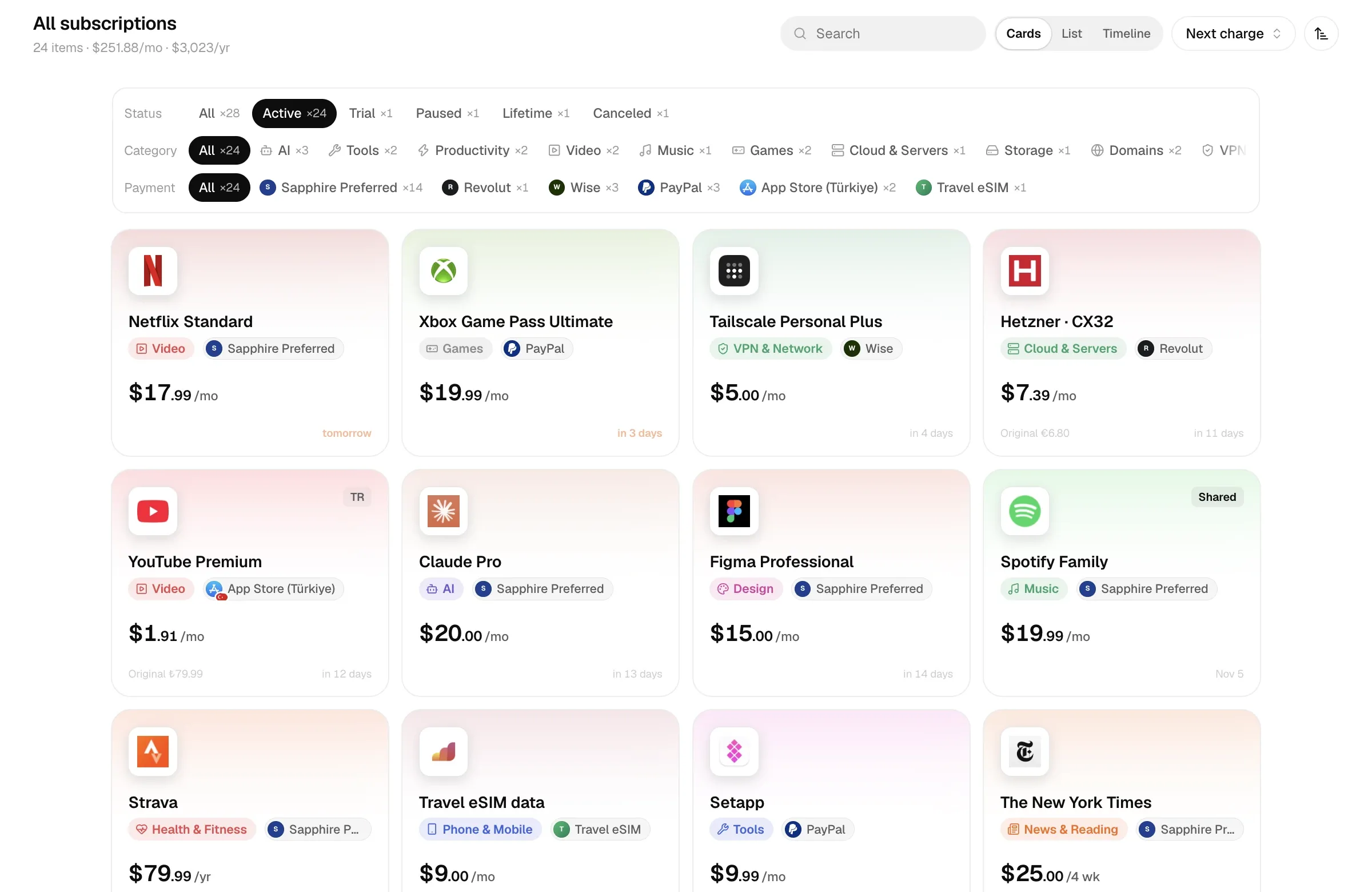
Add a subscription
Section titled “Add a subscription”- Click New in the sidebar, or press N.
- Enter the name, amount, currency, cycle and start date, then choose a payment method.
- Open More options for an offer, free time or a reminder if needed.
- Review and save, then open the subscription’s details to check the next charge.
Fields in the editor
Section titled “Fields in the editor”Billing
| Field | Meaning |
|---|---|
| Amount | The price per period, in the currency below. |
| Currency | The subscription’s own currency (TRY for a Turkish App Store account, say). It doesn’t have to be your base currency. |
| Billing cycle | See below. |
| Payment method | Chosen from your wallet. New subscriptions default to Settings → Bookkeeping → Default payment method. |
| Start date | The date of the first charge; later charges are projected from it. For lifetime purchases this is the Purchase date. |
| Region | The store region for region-priced stores such as the App Store, e.g. TR or NG. |
| Account | Login email, phone number or username. In the Phone & Mobile category it becomes Phone number. Only shown in the app, never sent to the public page. |
Status: Active, Trial, Paused or Cancelled. For a trial, fill in Trial ends; for “not renewing”, fill in Ends on.
Who uses it: Just me, I host (shared plan), I joined (shared plan), or Paying for. See Shared plans and Paid for others.
More options: intro offer, free time, reminder, links (website and manage page), tags and notes. The Manage page is where the family members, billing and renewal settings live; the detail and shared plan pages link straight to it.
Billing cycles
Section titled “Billing cycles”Presets are Weekly, Monthly, Quarterly, Every 6 months, Yearly, Every 2 years and Lifetime. Custom… lets you bill every n days, weeks, months or years.
Charge dates are projected from the start date: charge k = start date + k cycles. Monthly projection keeps the original day of the month and clamps to the last day in short months: a monthly plan started on January 31 charges on February 28, then March 31.
For “per month” figures, a month is 30.4375 days and a year is 365.25 days:
monthly cost = price per period × 30.4375 ÷ days in the cycleSo $120 a year is about $10 a month, and $8 every 4 weeks is about $8.70 a month.
Lifetime
Section titled “Lifetime”Paid once, recorded as a single charge on the purchase date. Lifetime purchases don’t count toward monthly cost, but they do count toward total spent, the year in review and that month’s cash.
Trials
Section titled “Trials”Set the status to Trial and fill in Trial ends. Charge dates before the trial end are skipped; scheduled charges on or after that date are billed. A subscription on trial isn’t counted in monthly cost or in the number of active subscriptions. Once the trial end date passes, it shows as active automatically.
If billing starts on the day the trial ends, set the start date to the trial end date so the first charge lands that day.
Intro offers
Section titled “Intro offers”Under More options → Intro offer, enter the Intro price and Offer ends. Charges dated before the offer ends use the intro price; from that day on, the regular price applies. When an offer ends within 30 days, the checkup flags it, and the charge reminder notes that the regular price is back.
Free time
Section titled “Free time”For deals like “buy one year, get one free”, fill in Free from and Free until under More options → Free time, or use the +7 days, +1 month, +3 months, +6 months and +1 year shortcuts.
- No charges are projected during the free period. From Free until, billing restarts on the original cycle.
- Until the free time ends, the monthly equivalent in Overview and the subscription list is spread thinner: one period’s price ÷ (one cycle + the free days). After that it returns to normal.
- Charges you’ve recorded yourself are kept as they are.
Click Pause on the detail page, or set the status to Paused in the editor. From the pause date, no charges are projected and the subscription doesn’t count toward monthly cost.
Resume on the detail page clears the pause and continues on the original cycle — charges during the pause are projected again too. If you actually stopped for a while and then came back, use Resubscribe under History & changes in the editor instead, so the gap is recorded as a lapse. See Price history and phases.
Ends on and cancelling
Section titled “Ends on and cancelling”Ends on is the subscription’s end date: nothing is charged on or after it. Before then the subscription shows as Not renewing; afterwards it shows as Canceled. You get a reminder 7 days and 1 day before it ends.
When you cancel, set the status to Cancelled and fill in the end date. Past charges stay, nothing is charged afterwards, and the report can show how much less you spend per month from cancelling.
Deleting a subscription removes its whole history. If you’ve just stopped renewing, mark it as Cancelled instead.
Charges
Section titled “Charges”By default, charges are projected from the start date and the cycle. When reality is different — paying several years at once, renewing early, a promotional price, a refund — click Add in the charges list on the detail page:
| Type | Meaning |
|---|---|
| Charge | A normal charge. |
| Refund | Enter the amount refunded; it’s saved as negative. |
| Adjustment | E.g. the difference paid when upgrading a plan. |
| Failed charge | Kept in the record, but counted as 0 and not as spending. |
Charged to card is optional: when your card settles in another currency (the subscription is in TRY but your card was charged in USD), enter the card currency and amount. Statistics then use that actual amount, so FX spreads and fees count as real cost.
Once a stretch of the subscription has any recorded charges, it follows the records entirely. The first time you edit by hand, Calends first writes the charges it had projected up to today as records, then applies your edit; future charges use an explicit next due date if set, or start one cycle after the last record.
Reminders
Section titled “Reminders”Each subscription can have its own reminder: Default (follows the global setting), On the due date, 1, 2, 3, 5, 7, 14 or 30 days before, or Never. See Reminder rules.
Service end date
Section titled “Service end date”For services such as domains, the expiry date and the charge date can differ (auto-renew may charge some days before expiry). The editor has no field for it; ask the built-in assistant, or use the MCP tool update_subscription to set expires. The detail page then shows Service ends.